2026-11-04
How to make a music video for your Suno song (without stitching five tools together)
Three ways to build the visuals, and a shorter path from a finished Suno track to a finished MV.
You finished the song in Suno in an afternoon. The music video is where the week goes.
Once the track is ready, you still need pictures, motion and an edit. You can use a different tool for each stage, or build a visualizer that responds to the audio. Either way, someone has to put the pieces together.
This guide outlines three ways to build those visuals, explains the work each involves, and then walks through a shorter path where the song itself drives the storyboard, the singing shots and the cut.
Three ways to build the visuals
1. The image pool. Plan the scenes, generate stills in an image tool such as Midjourney, and keep the ones that fit the character and setting. Animate the selected frames one by one with an image-to-video model, then assemble the clips in an editor such as CapCut. A moodboard helps keep the look consistent, but choosing and matching the shots is still your job.
2. The coded visualizer. Build visuals that react to the audio instead of showing a singer or a story. Define the look, write or commission the code, then export and edit the result. A coding assistant such as Codex can help write it; you still need to test how the visuals respond to the track.
3. The connected chain. Link the stages with scripts or automation: a chat model for the concept, an image model for the storyboard, a video model for the shots, and an editor for the cut. This can reduce manual file transfers. You still need to handle failed steps and check that each output fits the next stage.
Different tools, same shape: song → pictures → motion → edit. Each arrow is a handoff, and every handoff is where things go wrong.
Where the multi-tool pipeline breaks
The tutorials that walk through this pipeline, such as this Suno, Kling and CapCut walkthrough, keep running into the same four problems.
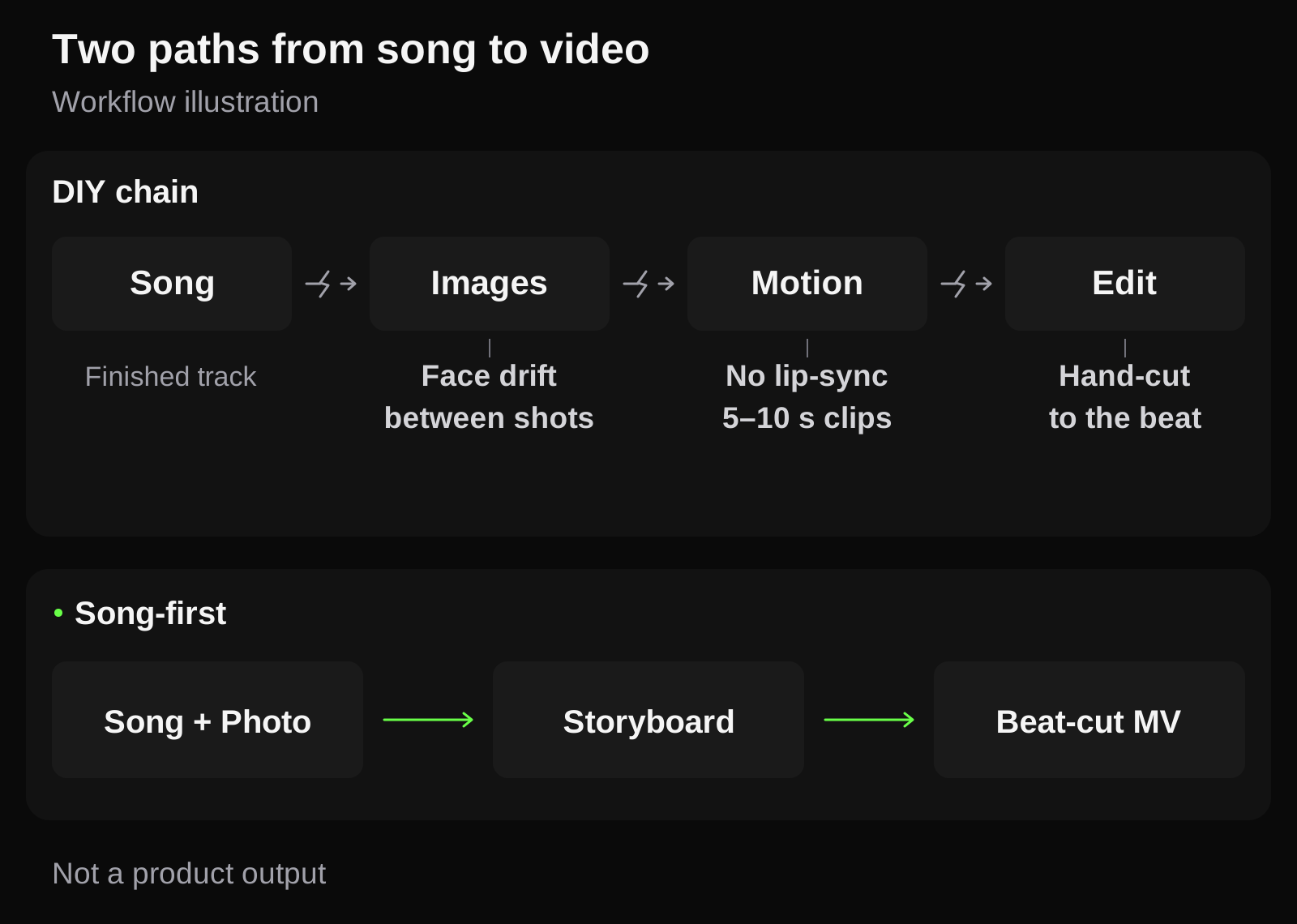
Workflow illustration. The four friction points are explained below.
The singer changes face between shots
Every image and every clip is a separate generation. Character references and moodboards help, but across 30 or 40 shots the jawline, the hair or the jacket drifts. That is why the image pool gets so big: you generate far more than you need and keep the few that still look like the same person. One creator who wrote up a full video mentions the style shifts between clips openly.
Nobody is actually singing
A music video for a vocal track needs a mouth that moves with the words. Video models turn a still into motion, but singing to your vocal is a separate lip-sync step done clip by clip. Guides recommend isolating the vocal stem and using a front-facing image to make it work, and you still line each clip up by hand.
Clips last seconds; your song lasts minutes
Most video models generate short clips. A three-minute song at five seconds a shot is about 36 generations, plus the re-rolls. A creator who finished a video in under six hours counted that as fast. Per shot, the tools give you strong control and leave the song assembly to you.
The cut ignores the beat
The model does not know where your chorus starts. You scrub the timeline, trim every clip to the bar, and move the lip-sync shots so the mouth lands on the lyric. This is the step that turns "one weekend" into "one week."
If you enjoy that control, keep going. The coded visualizer and the hand-picked image pool are real craft. If what you actually want is your song, your singer, a finished MP4, the next path removes most of the handoffs.
A song-first path: one upload, one storyboard, one cut
MusicMV starts from the finished track instead of from pictures. You give it the song and a photo of the performer. It listens to the music, writes a shot plan, draws a storyboard frame for every shot, and renders a music video cut to the beat.
How that maps onto the four problems above:
| Problem in the DIY chain | What happens instead |
|---|---|
| Face drifts between shots | A reference photo or saved Character helps guide appearance across shots, but faces and outfits can still vary. Check every frame in the storyboard. |
| No real singing | In Sing & Perform, the lead's singing shots are lip-synced to your vocal. |
| 36 short clips to generate and track | The whole song (5 s to 6 min) or a 15/30/60 s part is planned in one go. |
| Hand-cutting to the beat | The final MP4 is cut to the music. |
There are two limits. Only the main character lip-syncs today; other characters can appear in the story but don't sing. And if you want a story video with no singing at all, choose Perform: the characters act out scenes, without lip-sync, and the cut still follows the beat.
Step by step: from finished song to finished video
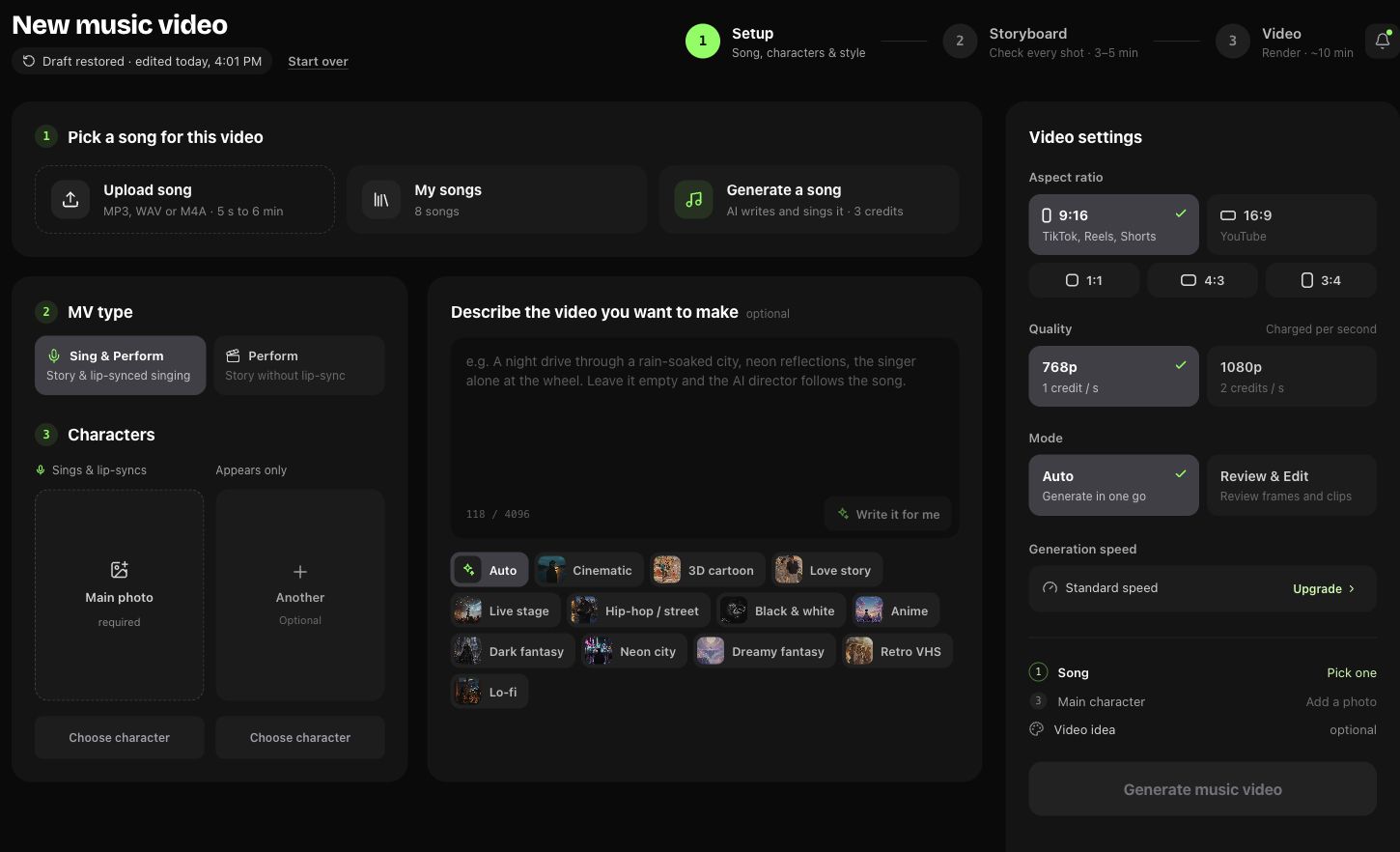
The current create page, before a song or character is selected.
- Bring the song. Download your Suno track as MP3 or WAV (M4A works too) and upload it, up to 6 minutes. Only use songs you have the rights to. You can also pick a song from My songs, or generate one on MusicMV first. Not ready to commit? Use just a 15, 30 or 60 second part; the default is the loudest section, usually the chorus.
- Add the performer. Upload a clear, front-facing photo you have permission to use, or first create a Character in Characters, check and save its appearance, then select that saved version on Create. References help guide appearance; they do not guarantee an identical face or outfit in every shot.
- Describe the video, or let it write the brief. Pick a style as a starting point, then edit the description. "Write it for me" reads the song and your photo and drafts one for you.
- Choose the format. 9:16 for TikTok, Reels and Shorts; 16:9 for YouTube; also 1:1, 4:3 and 3:4. Choosing first means every shot is composed for that frame instead of cropped later.
- Review the storyboard (Review & Edit mode). Check the faces, outfits and setting in every frame. Reframe costs 1 credit per image on Starter or an older Basic pack; Creator and above include free Reframe. Uploading your own image is free. Prefer to skip review? Auto mode runs straight to the finished video.
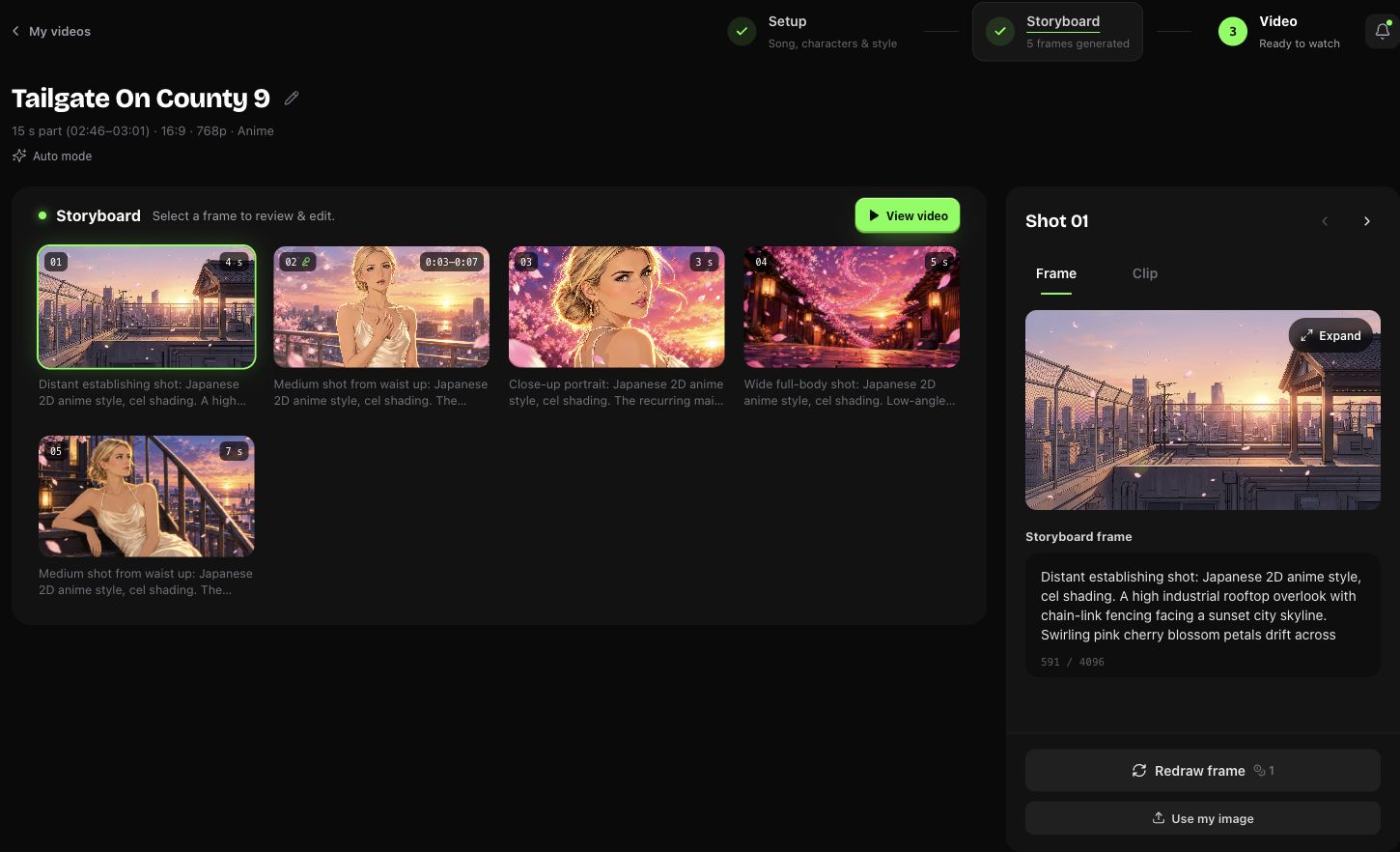
The five-frame storyboard of the example below. It was made in Auto mode; this screenshot shows the storyboard viewed after completion.
- Render. A storyboard usually takes 3–5 minutes; a full song usually renders in about 10, longer for longer songs.
- Fix individual shots. Use Reframe for a shot’s image and Reclip for its video. Creator includes free Reframe; Studio and Studio Plus also include free Reclip. Otherwise, generating a clip uses credits based on its length and resolution. Uploading your own clip, returning to a saved take and recutting are free. Turn on lyric captions if you want them.
Type @ in the video description or storyboard frame editor and choose one of your selected characters. Then say what they should do and where they should appear. This is clearer than “she” or “the other person”, especially with two characters. @ refers to selected characters; it does not add new ones.
That is the image pool, the animation pass, the lip-sync pass and the edit, folded into one project page.
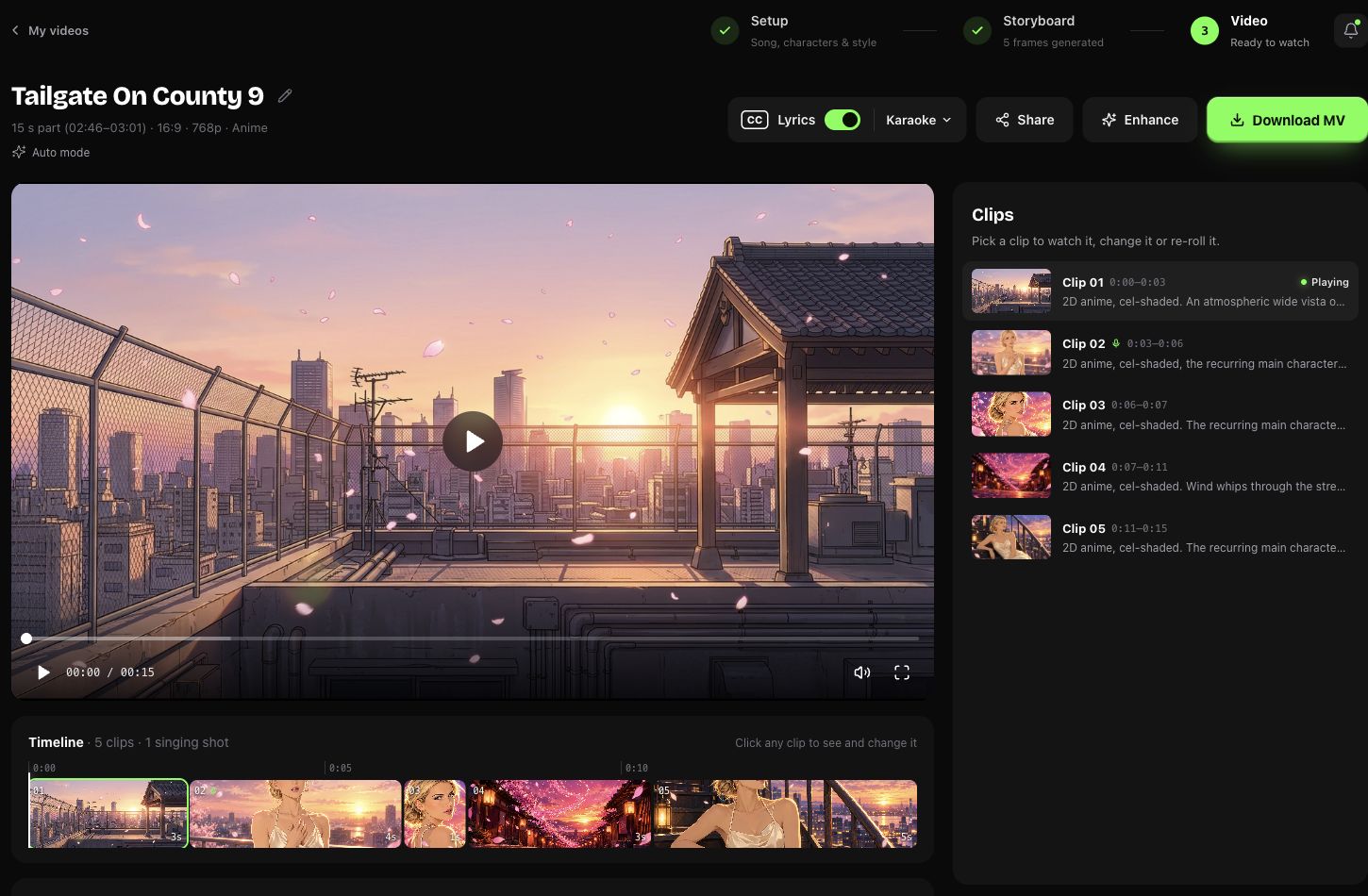
The finished video workspace for the same example. Open an image to inspect the controls at full size.

A closer view of its full timeline: five clips, including one singing shot.
A real 15-second MusicMV example
The storyboard and video screenshots above come from Tailgate On County 9, a project in the Anime style, made in Auto mode. It has five clips, including one singing shot, and used 15 creation credits. The final MP4 is 1344 × 768, with sound.
Watch the 15-second MusicMV example
Cherry blossom petals cross a sunset rooftop. The lead sings toward the camera, followed by a close-up, a petal-filled street and a quiet shot of the lead beside a rooftop stairway.
What it costs
The DIY chain is usually priced as several subscriptions plus your hours. MusicMV shows you one price before you generate:
- 1 credit per second of audio at 768p, 2 at 1080p. A 15 s chorus at 768p is 15 credits; a full 3-minute song is 180.
- Eligible new accounts get free credits for a first 15 s video at 768p. Free videos are watermarked, and downloads unlock with any credit pack.
- The Starter pack is $9.90 for 240 credits (see pricing for every pack), which covers a full 3-minute song at 768p.
- If a technical error stops generation, the credits used are returned automatically. A generated result with the wrong face, outfit or scene needs a support review: send the project link, shot number and what you wanted to see. If you discard the storyboard, we return the remaining credits minus the preview fee shown before you decide.
When to keep the DIY pipeline
It comes down to what you want:
- You want an abstract or audio-reactive visualizer. Code and motion-graphics tools are the right call. MusicMV makes performance and story videos, not waveform art.
- You want total control of every frame and you enjoy the edit. The image-pool method gives you that, at the cost of time.
- You need several characters singing different parts. That isn't supported yet.
Everyone else, who made a song in Suno and wants the singer on screen, singing it, in a video that hits the chorus on time, can skip most of the chain.
FAQ
Can I make a music video from a song I made in Suno?
Yes, as long as your Suno plan gives you the rights to use the track the way you plan to. Download the MP3 or WAV and upload it to MusicMV like any other song.
Do I need a real person's photo?
You need a clear, front-facing photo you are allowed to use: yourself, a performer who agreed, or a character image you made. Don't upload someone else's likeness without permission.
Will the face stay the same through the whole video?
A photo or saved Character helps keep the look consistent, but faces and outfits can still vary. You can create a Character in Characters, check its appearance and save it, then choose that version on Create. Check every storyboard frame before rendering.
Can I edit a music video after it's finished?
Yes, for 7 days after completion. Use Reframe to redraw a shot’s image or Reclip to regenerate its video. Creator includes unlimited free Reframe; Studio and Studio Plus also include unlimited free Reclip. Without the matching benefit, Reframe costs 1 credit per image and Reclip uses credits based on clip length and resolution. Fully refunded or disputed purchases do not qualify. Uploading your own clip, choosing a saved take and recutting are free. If a technical error stops a regeneration from completing, the credits used are returned automatically. If the result isn’t what you asked for, send support the project link, shot number and what you wanted to see.
Make another version opens the creation form with the original song or selected part, character references, description, aspect ratio, resolution and generation mode. Check the settings before generating: the new project uses credits and does not copy your edited storyboard frames or saved takes. You can’t change the aspect ratio of a finished project or merge projects directly. To reuse good clips, download them and combine them in another video editor. To keep a full vertical shot in a horizontal frame, add borders or a background; to fill the frame, crop the shot.
Lyric captions can be switched on or off for free. See editing benefits.
Can I just test it on the chorus?
Yes. Pick a 15, 30 or 60 second part. Eligible new accounts get free credits for a first 15 second video at 768p.
How long does it take?
Usually about 3–5 minutes for the storyboard and about 10 minutes for a full song. Longer songs take longer.
Ready to try it on your own track? Start with your song on MusicMV.
Suno, Midjourney, Kling, CapCut and Codex are trademarks of their respective owners. MusicMV is not affiliated with or endorsed by them.