2026-11-20
How to Make an Anniversary Video for Your Parents With Old Photos and a Song
Start with a song and a few photos. Let MusicMV lay out the story, then put the photos that matter into the shots you choose.
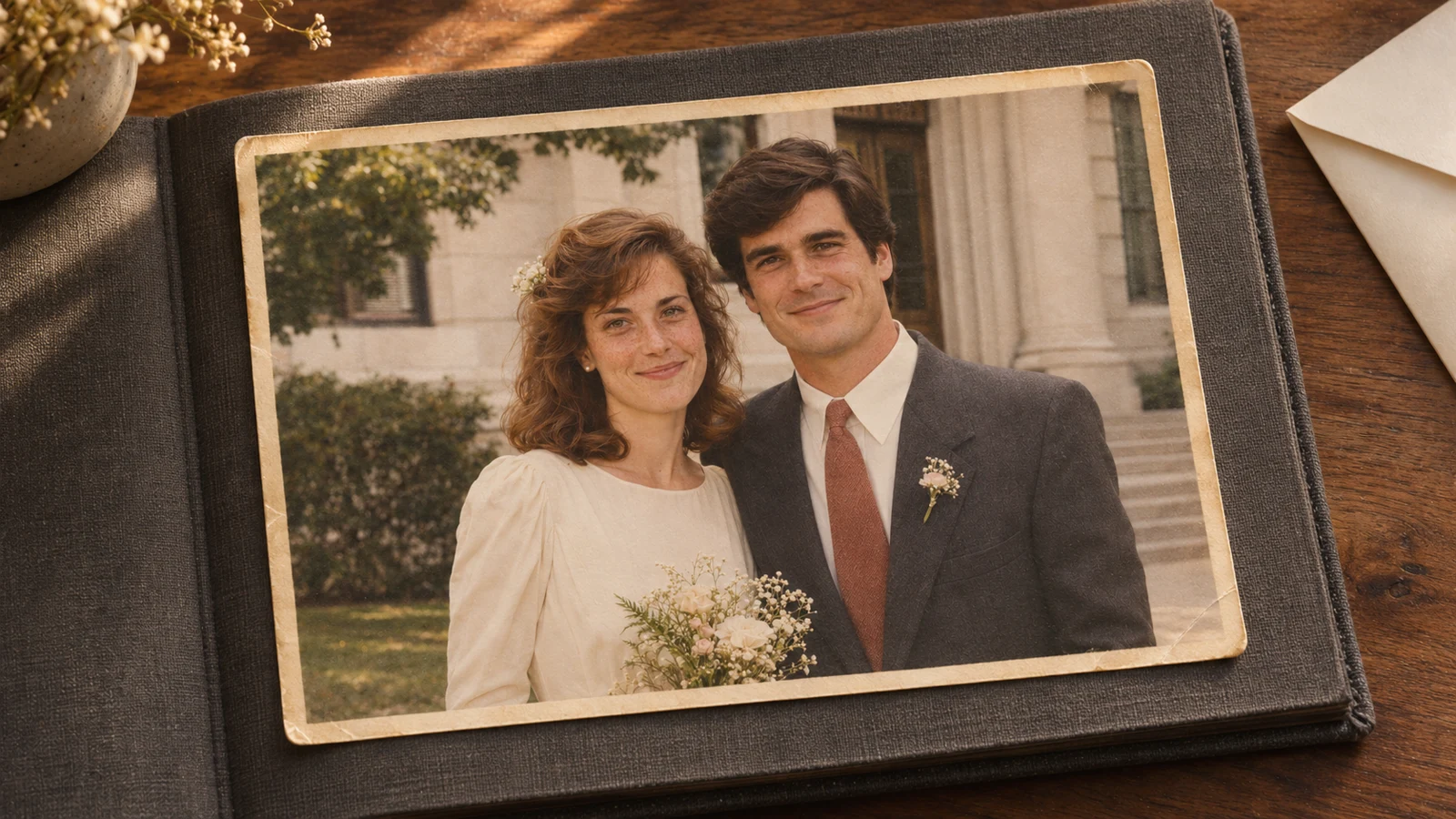
If you’ve written a song for your parents, you probably already know which wedding photo belongs in it. Upload the song, let MusicMV sketch out the scenes, then replace the opening shot with that photo. Save a shot for the trip they always talked about, even if there’s no photo of it.
MusicMV is an AI music video generator. It listens to the song, plans a storyboard of story scenes, lets you put your own photos into the shots you choose, and renders a video cut to the music. It isn’t a slideshow maker: you build a short film around two or three photos, which suits a 25th or 50th anniversary as much as any other year. No song yet? You can generate one in step 2.
Watch All These Years, a 28-second anniversary video
Listen for “Mom with her paper flowers” as the young couple lean together. When their daughter sings “all of us are home,” you see the three of them on the porch. For the last line, the camera stays on their hands.
Play All These Years with sound
We made the song and the moving shots with MusicMV, using fictional family photos. We timed the cuts and added the captions in a separate editor. On the site, you can choose which photo opens each shot, adjust how people move and turn on timed lyrics for the finished video.
1. Pick a picture for the line that matters most
Play your song once and write down the line you most want your parents to see themselves in. Here’s how we picked the pictures for All These Years:
| What you hear in the example | Picture to use in your own storyboard |
|---|---|
| “Mom with her paper flowers” | Open with a wedding photo where you can actually see the bouquet, the borrowed tie or another detail from your verse. |
| “You kept a ticket for the coast” | Give the trip its own scene. If the trip never happened, describe the place you imagine they would have visited. |
| “All of us are home” | Choose a recent photo that includes the person singing to them. A picture someone took on the porch works well here. |
| “You still reach for her hand” | Save a close-up for the last shot. You can take a new photo of their hands resting together, rings visible. |
Use the sequence as a guide when the storyboard appears. MusicMV plans the shot lengths, so listen to the finished cut to hear where a line falls. Use the order of the thumbnails to pick a shot for each memory.
Getting old prints ready
- Scan them, or photograph them flat. Use daylight from the side, no flash, and check for glare on glossy prints.
- Crop away the album page and borders, and crop to the shape of the video (16:9 for a TV) so you decide what stays in the frame.
- Black-and-white prints work too. Check the first frame and the animated clip to see how the tones and faces look.
- Small or blurry faces are the limit. A tiny, soft print can open a scene, but it makes a poor character reference. Use your sharpest photo for that (see step 2).
2. Get the song, then ask for a storyboard
Open Create and sign in.
The song. Upload yours as an MP3, WAV or M4A, up to 6 minutes. Only use a song you have the rights to. If you want to practice with the same music, use the 28-second vocal track from the example and choose Whole song. The free first-video option uses a 15-second excerpt.
To write a song for your own parents, choose Generate a song. For a daughter singing to her parents, choose Female under Vocals and 30 s under Length. Under Genre, select Custom. Paste this short version of the sample’s style prompt into Your own style:
Intimate indie-folk ballad, 84 BPM. Fingerpicked guitar, soft piano, clear warm vocals. Start singing after one pickup.
To use the words you hear in the video, select Use my lyrics and paste the verse and chorus below. Try replacing “borrowed tie” and “paper flowers” with two details you can see in your parents’ wedding photo.
[Verse]
Dad in his borrowed tie
Mom with her paper flowers
You kept a ticket for the coast
For a trip you'd take someday

[Chorus]
Tonight the porch light's on
And all of us are home
All these years, Dad
You still reach for her hand
If you’d like MusicMV to write the lyrics, select Write them for me and paste your memories into What’s the song about? For example:
A daughter singing to her parents on their anniversary. Dad borrowed his wedding tie. Mom carried paper flowers. Now the porch light is on and all of us are home. End with Dad still reaching for Mom’s hand.
Generating the song costs 3 credits and gives you two versions. Listen to the last line of each and choose the take where you can hear the words most clearly.
The characters. Main character needs a clear photo of one person, face visible. Use a solo photo of one parent. If you want both in the generated scenes, add the other parent’s solo photo under Another character. The wedding photo of the two of them goes into a shot later, in step 3.
The mode. Choose Perform for a story set to the song, with nobody lip-syncing. Under Video settings, select Review & Edit so you can change the storyboard before the video is rendered. If you’ll play it on a TV, choose 16:9.
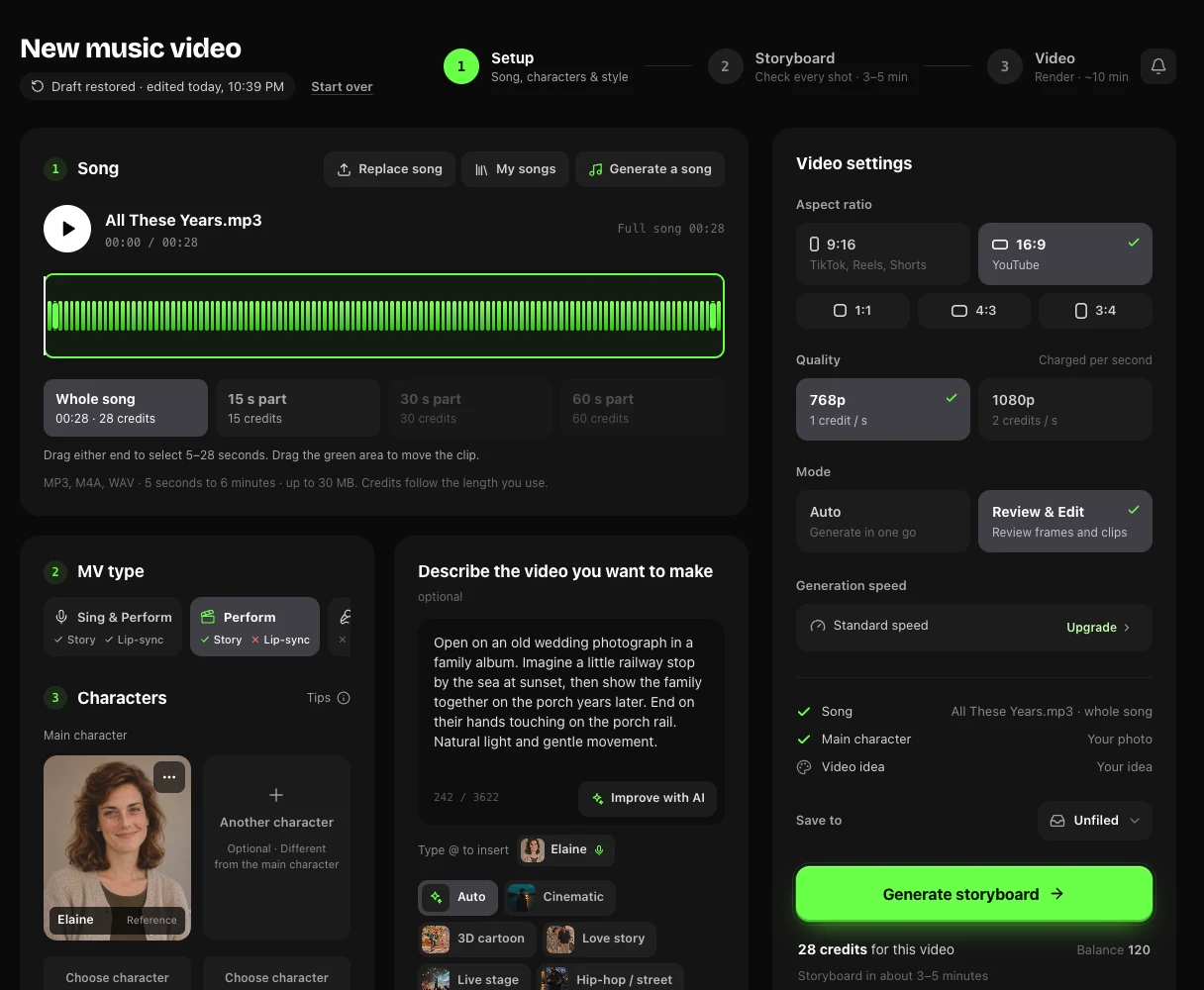
In Describe the video you want to make, give the whole story in a few sentences. Swap the station and porch for places your parents know:
Open as if someone has found an old courthouse wedding photo in a family album. Let the bride lean toward the groom, both still in frame. Show the quiet seaside station they always wanted to visit. Bring the family together on the porch for the chorus. End on the parents’ hands touching on the railing. Use natural light and gentle camera movement.
With two characters, type @ in the description and choose one to say who does what. It’s clearer than “she” or “the other person”.
3. Put your own photo into a shot
The storyboard usually takes about 3–5 minutes. Open it and look at the story and the order of the thumbnails, then click the shot you want to change. The opening shot is a good spot for the wedding photo.
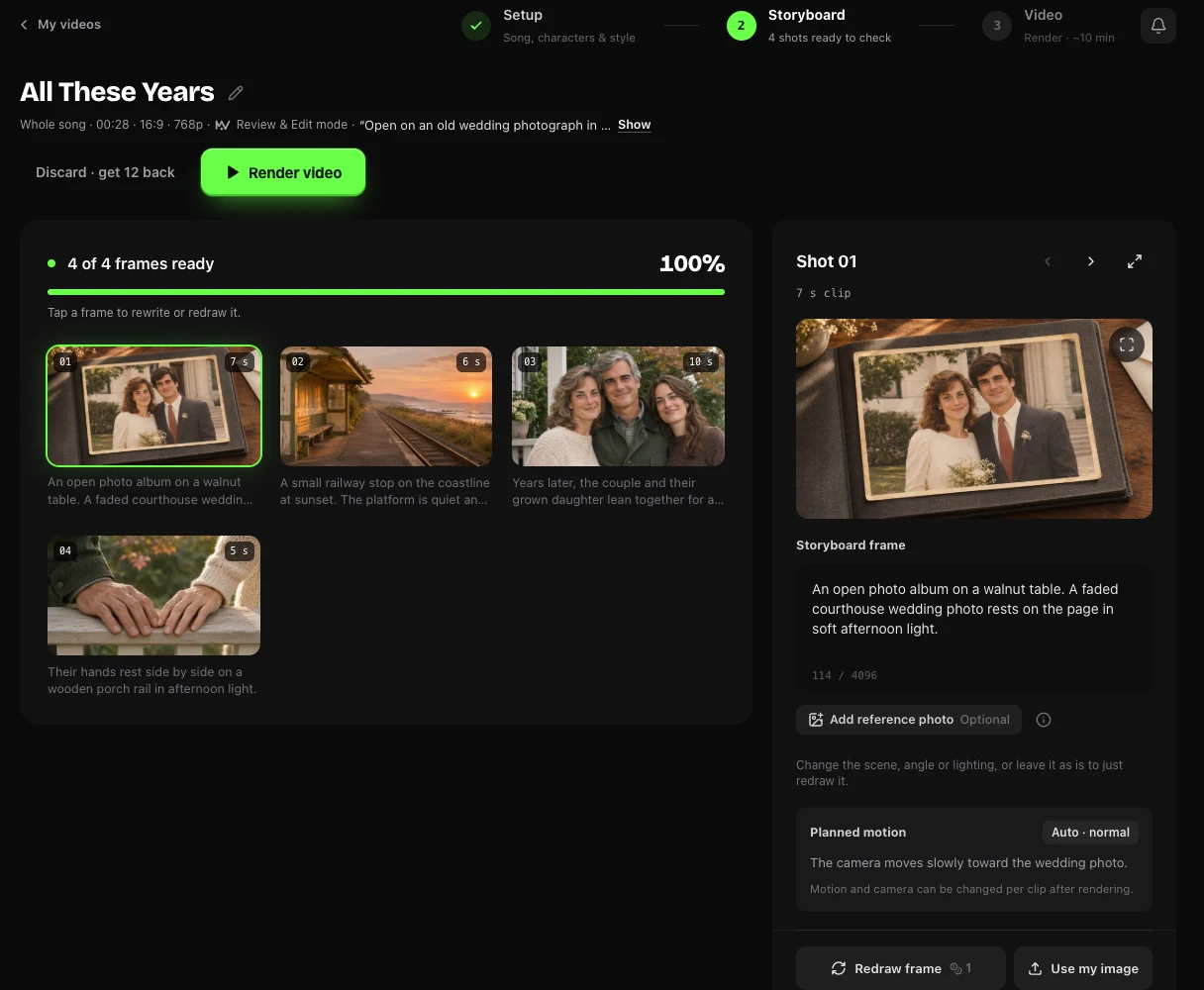
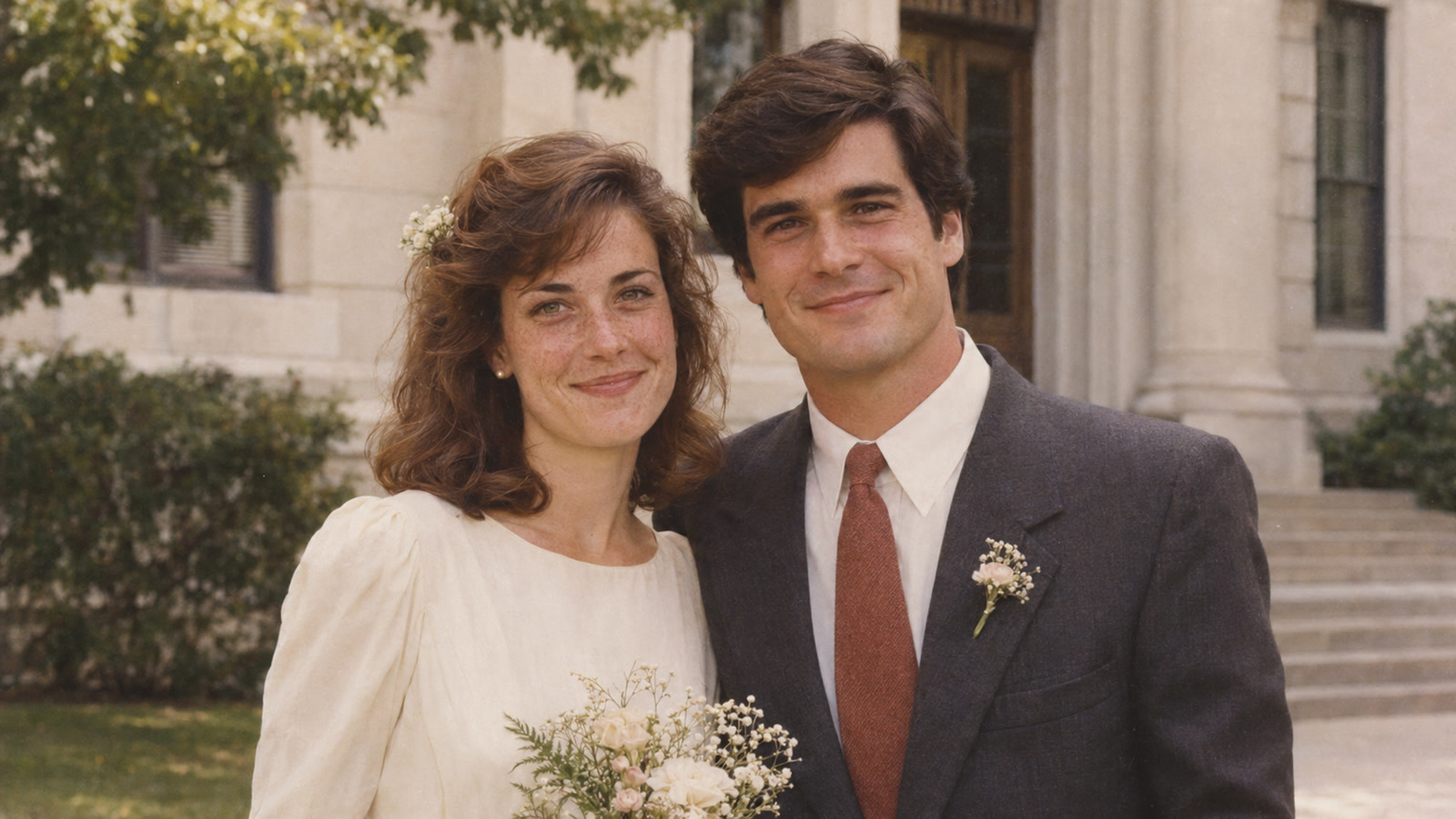
Click Use my image and choose the photo from your device. It becomes that shot’s storyboard frame, and uploading it is free. Use your wedding photo (or our sample wedding portrait) for an early shot and the family portrait for a later one. For the last shot, try your own close-up or the hands photo used in the example.

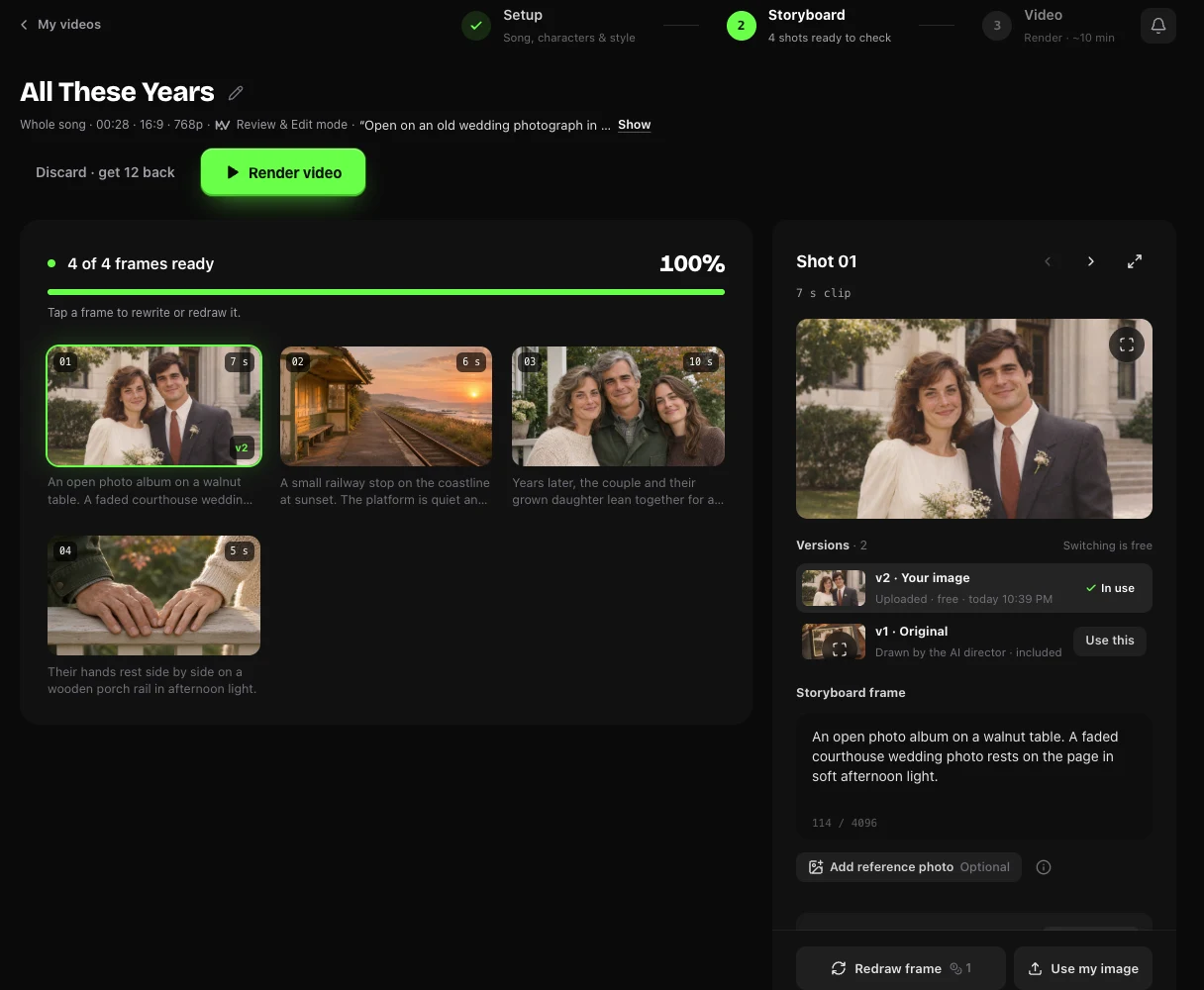
For a place you have no photo of, select its shot and describe what the first frame should show in Storyboard frame. Here’s a prompt for the trip in the song. Replace the station with the place your parents always wanted to visit, then choose Redraw frame.
An empty seaside railway platform at sunset. The tracks curve toward the water. A weathered wooden shelter sits on the left, with dune grass between the platform and the shore. Warm amber light, wide view, no people.
The screenshots show a walkthrough in the MusicMV editor using the song, photos and wedding clip from All These Years.
4. Watch the clips with the song
When the frames are ready, select Render video. Each frame becomes a short moving clip, so your photo will be animated: a slow camera move, a turn of the head. Play the clips before selecting Review and compose to put the full video together. Watch past the first second, especially when two people are close to each other. Check that the animation still looks like your parents, and play the final cut once to hear how the photos land against the song.
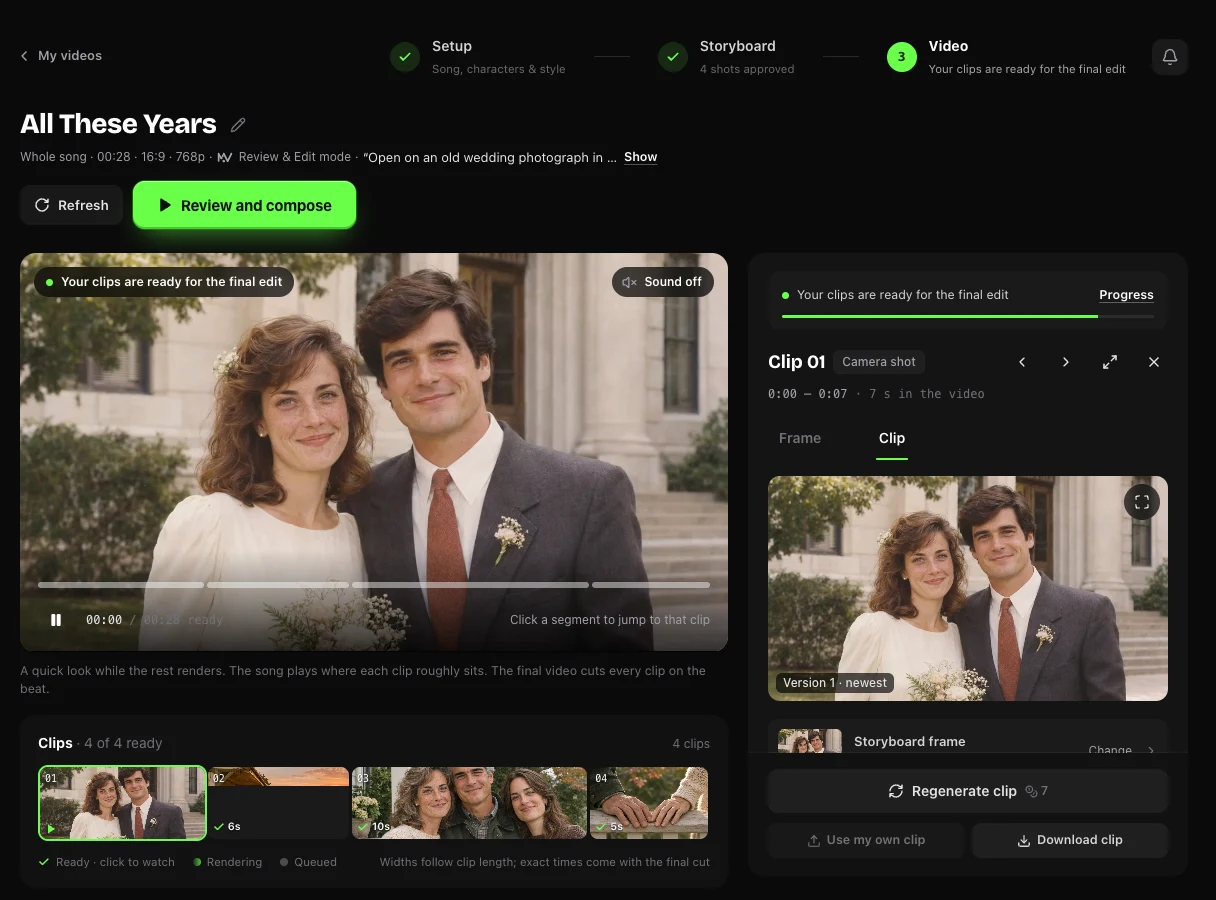
If one parent moves out of frame, open that shot in Video once the MV is complete. In the Clip tab, choose Static under Camera and paste one gesture into Motion. These are shortened versions of the directions we used for two shots. Pick the one that matches your starting photo.
Wedding portrait
Both people stay side by side, visible from the waist up. The bride leans her head a little closer to the groom. He glances at her and smiles. They hold that pose.
Hands on the porch railing
Their hands rest side by side on the wooden rail. His little finger gently touches hers. Her wedding ring catches the late sun. Both wrists stay resting on the rail. Hold on their hands.
Check the credit cost on Regenerate clip, then preview the new take through to the end. If you like it, choose Update MV with version to use it in the full video.
If you already have a silent video of the wedding photo or a family moment you want to preserve, open the shot in the completed Video, select Use my own clip and confirm that it contains no singing. Preview the replacement and choose Update MV with version to apply it.
To put the words on screen, switch on Lyrics on the finished video. Choose Clean for one line at a time, then Show captions. Play the last line with the closing shot. If you uploaded a vocal track, allow time for transcription and listen for family names in particular. Captions are free. When downloading with captions, keep the tab open while they’re added to the MP4.
What it costs
- 1 credit per second of song at 768p, 2 at 1080p. A 28-second song like the example is 28 credits, plus 3 if you generate the song; a full 3-minute song is 180.
- Eligible new accounts get free credits for a first 15-second video at 768p, enough to see your parents’ photo in a scene before paying anything.
- Free videos are watermarked and can’t be downloaded. Any credit pack unlocks clean downloads. The Starter pack is $9.90 for 240 credits, which covers a full 3-minute song at 768p; see pricing for every pack.
- Generating a song is 3 credits. Using your own image in a shot is free. Redrawing a frame costs 1 credit on Starter and is free on Creator and above.
- If a technical error stops generation, the credits used are returned automatically.
You don’t have to use the whole song. Pick a 15, 30 or 60 second part; it starts at the loudest section, usually the chorus.
FAQ
Is this the same as an anniversary slideshow?
No. A slideshow shows your photos one after another with transitions. MusicMV generates story scenes around a character and cuts them to the song; your own photos go into the shots you pick. If you want many photos shown exactly as they are, use a slideshow tool. If you want a short film built around two or three photos and a song, this is the better fit. You can also do both and drop the downloaded MP4 into your slideshow.
Will my parents’ photo be changed?
A photo you place in a shot is animated into a short clip, so faces move. Results vary, and a face can drift from the original. Check every clip before you compose the video. If you already have a silent clip that shows the photo exactly as you want it, you can use it to replace the shot in step 4.
What if I don’t have a song?
Generate one on MusicMV from a few lines about your parents, or paste lyrics you wrote. You can also upload any song you have the rights to use.
Can I download the video and play it on a TV?
Yes, once your account has bought any credit pack. Downloads are MP4. Choose 16:9 before generating to frame the original shots for a widescreen TV.
How early should I start?
Give yourself a day or two before the anniversary. The storyboard and render take minutes, not hours, but you will want time to swap a photo, redraw a scene or redo a clip that doesn’t look right.
Can I fix one shot after the video is finished?
Yes, for 7 days after completion. Open the shot in Video to regenerate the clip, upload your own, or go back to an earlier take, then update the video. Uploading your own clip, switching takes and recutting are free.
For every setting on the create page, see the full step-by-step guide. Ready to start? Make the video on MusicMV.